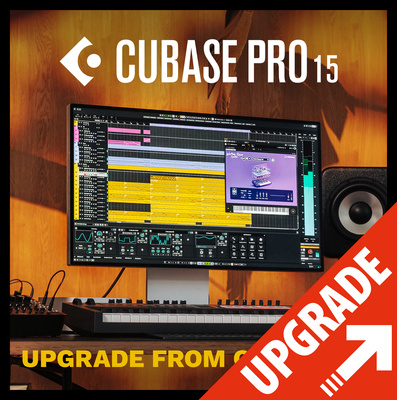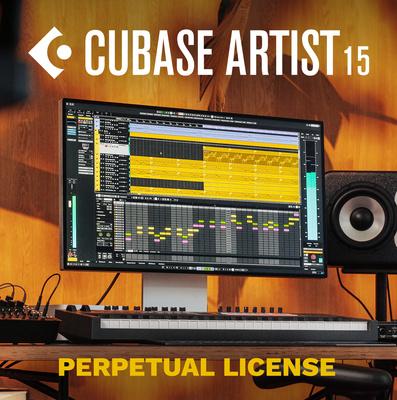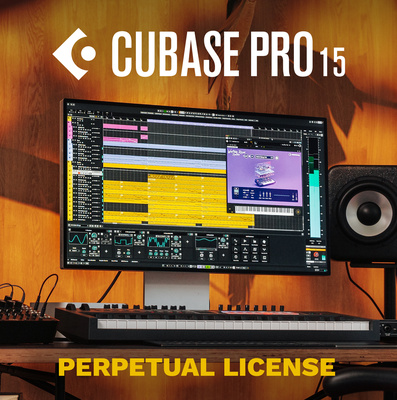
Acaba de salir Cubase 15 con IA integrada...
NEW: 579€ (Licencia nuevos usuarios)
UPGRADE: 99,99€ (Version 14 Pro)
Grace Period Update
The Grace Period for Cubase 15 began on October 8, 2025. This means that anyone who has activated a Cubase version since this date is eligible for a free update to Cubase 15. Detailed instructions for updating within the Grace Period can be found in our Steinberg Helpcenter.
Cubase 15 Release Notes
What’s new?
November 5, 2025 – We are excited to announce the immediate release of Cubase 15.
Cubase 15 is a major update that includes numerous improvements across various areas of the sequencer.
You can find comprehensive information on the new features and enhancements on our product pages, along with a series of in-depth videos.
For those who want to explore further, additional detailed information on all new features is available in the official user manual.
Additional improvements and changes
Besides all the new features and improvements listed on the product page, there are a few smaller updates and changes we'd like to highlight here.
The Project Window Toolbar has been slightly updated. You'll notice that some items can now be collapsed or expanded by clicking the three vertical dots next to them. There are also a few new toolbar items. You can now open the Hub and access the new Quick Audio Export directly from the toolbar.
Alongside the new Plug-in Scaling feature, you can now also scale the entire application on macOS via the preferences. This option was already available on Windows and now works consistently across both platforms, even without restarting the application.
The Horizontal Scrolling Direction has been unified between Windows and macOS, particularly noticeable when using SHIFT + mouse wheel in the various editors. This should be a relief for users working on both platforms, where the previous behavior was inconsistent.
On macOS, you shouldn't notice any change. On Windows, the direction has been reversed to match macOS and the native OS behavior. If you prefer the old scrolling direction, you can enable "Invert Direction for Horizontal Scrolling" under Preferences > Editing.
In Preferences > Metering, you can now set the Meter's Fallback time parameter up to 80 dB/s (previously limited to 40 dB/s). The default value remains 12 dB/s.
Render in Place track naming has been improved: newly generated tracks are now named after the original track.
The VST Plug-in Manager has received a visual overhaul, aligning it more closely with the overall sequencer design and resolving several UI issues. It also introduces two new features:
A new filter option to "Show Plug-Ins Used in Active Project."
The ability to add separator elements in Custom Collections for better organization.
We've also begun reorganizing various aspects of application setup.
On macOS, the application menu now includes entries for Audio Settings and Key Commands.
Key Commands has been moved from the Edit menu to the application menu.
On Windows, these entries are available at the bottom of the Edit menu.
The new Audio Settings window extracts the most relevant sections from the Studio Setup window and includes a shortcut to Audio Connections.
Known Issues
Dolby Atmos
Unfortunately, there’s a stability issue with Dolby Atmos projects in the initial release of Cubase 15. To ensure the best experience and reliability, we recommend using Cubase 14.0.32 for Dolby Atmos projects. We’re actively working on a fix and will provide an update as soon as possible.
Stem Separation on Windows on ARM
The new Stem Separation feature is not yet available on Windows on Arm systems. We’re confident that support will be added in one of the upcoming maintenance updates.
Plug-in scalability
Due to technical reasons, the following plug-ins don’t support Plug-in Scaling:
VST Amp Rack
VST Bass Amp
Ambi Decoder
LoopMashFX
VST Connect 5
Retrologue 2
HALion Sonic 7
Padshop 2
Track Control Presets
When starting the application with fresh preferences, you'll notice new default Track Control settings, including the Volume control where applicable.
The following presets are available:
Standard: Matches the new default Track Control configuration.
Simple: Displays only the most essential Track Controls.
Recording: Optimized for recording, showing the most relevant controls for this workflow.
Mixing: Optimized for mixing, including the Pan control and a track height of 3, which also reveals the Modulators/Inserts/EQs/Sends state indicators.
If you're updating from a previous version, your existing settings will be migrated automatically, and the Track Controls will appear as they did before.
If you'd like to switch to the new standard default configuration, follow these steps:
Open the Track Control Settings window,
In the Controls Area Preview, set Track Name Width to 6 - this is essential for the layout to display correctly.
Click Reset All in the bottom right corner.
The Track Controls will now be displayed in the new layout.
To use the updated presets without resetting all preferences:
Set the Track Name Width to 6, as the presets depend on this setting for proper layout.
Quit the application.
Copy the file /presets/RAMPreset.xml from the application folder/bundle to your current Preferences folder, keeping the same folder structure and overwriting the existing file.
Restart the application - the updated presets will now be available.
NEW: 579€ (Licencia nuevos usuarios)
UPGRADE: 99,99€ (Version 14 Pro)
Grace Period Update
The Grace Period for Cubase 15 began on October 8, 2025. This means that anyone who has activated a Cubase version since this date is eligible for a free update to Cubase 15. Detailed instructions for updating within the Grace Period can be found in our Steinberg Helpcenter.
Cubase 15 Release Notes
What’s new?
November 5, 2025 – We are excited to announce the immediate release of Cubase 15.
Cubase 15 is a major update that includes numerous improvements across various areas of the sequencer.
You can find comprehensive information on the new features and enhancements on our product pages, along with a series of in-depth videos.
For those who want to explore further, additional detailed information on all new features is available in the official user manual.
Additional improvements and changes
Besides all the new features and improvements listed on the product page, there are a few smaller updates and changes we'd like to highlight here.
The Project Window Toolbar has been slightly updated. You'll notice that some items can now be collapsed or expanded by clicking the three vertical dots next to them. There are also a few new toolbar items. You can now open the Hub and access the new Quick Audio Export directly from the toolbar.
Alongside the new Plug-in Scaling feature, you can now also scale the entire application on macOS via the preferences. This option was already available on Windows and now works consistently across both platforms, even without restarting the application.
The Horizontal Scrolling Direction has been unified between Windows and macOS, particularly noticeable when using SHIFT + mouse wheel in the various editors. This should be a relief for users working on both platforms, where the previous behavior was inconsistent.
On macOS, you shouldn't notice any change. On Windows, the direction has been reversed to match macOS and the native OS behavior. If you prefer the old scrolling direction, you can enable "Invert Direction for Horizontal Scrolling" under Preferences > Editing.
In Preferences > Metering, you can now set the Meter's Fallback time parameter up to 80 dB/s (previously limited to 40 dB/s). The default value remains 12 dB/s.
Render in Place track naming has been improved: newly generated tracks are now named after the original track.
The VST Plug-in Manager has received a visual overhaul, aligning it more closely with the overall sequencer design and resolving several UI issues. It also introduces two new features:
A new filter option to "Show Plug-Ins Used in Active Project."
The ability to add separator elements in Custom Collections for better organization.
We've also begun reorganizing various aspects of application setup.
On macOS, the application menu now includes entries for Audio Settings and Key Commands.
Key Commands has been moved from the Edit menu to the application menu.
On Windows, these entries are available at the bottom of the Edit menu.
The new Audio Settings window extracts the most relevant sections from the Studio Setup window and includes a shortcut to Audio Connections.
Known Issues
Dolby Atmos
Unfortunately, there’s a stability issue with Dolby Atmos projects in the initial release of Cubase 15. To ensure the best experience and reliability, we recommend using Cubase 14.0.32 for Dolby Atmos projects. We’re actively working on a fix and will provide an update as soon as possible.
Stem Separation on Windows on ARM
The new Stem Separation feature is not yet available on Windows on Arm systems. We’re confident that support will be added in one of the upcoming maintenance updates.
Plug-in scalability
Due to technical reasons, the following plug-ins don’t support Plug-in Scaling:
VST Amp Rack
VST Bass Amp
Ambi Decoder
LoopMashFX
VST Connect 5
Retrologue 2
HALion Sonic 7
Padshop 2
Track Control Presets
When starting the application with fresh preferences, you'll notice new default Track Control settings, including the Volume control where applicable.
The following presets are available:
Standard: Matches the new default Track Control configuration.
Simple: Displays only the most essential Track Controls.
Recording: Optimized for recording, showing the most relevant controls for this workflow.
Mixing: Optimized for mixing, including the Pan control and a track height of 3, which also reveals the Modulators/Inserts/EQs/Sends state indicators.
If you're updating from a previous version, your existing settings will be migrated automatically, and the Track Controls will appear as they did before.
If you'd like to switch to the new standard default configuration, follow these steps:
Open the Track Control Settings window,
In the Controls Area Preview, set Track Name Width to 6 - this is essential for the layout to display correctly.
Click Reset All in the bottom right corner.
The Track Controls will now be displayed in the new layout.
To use the updated presets without resetting all preferences:
Set the Track Name Width to 6, as the presets depend on this setting for proper layout.
Quit the application.
Copy the file /presets/RAMPreset.xml from the application folder/bundle to your current Preferences folder, keeping the same folder structure and overwriting the existing file.
Restart the application - the updated presets will now be available.
1
Responder
Citar